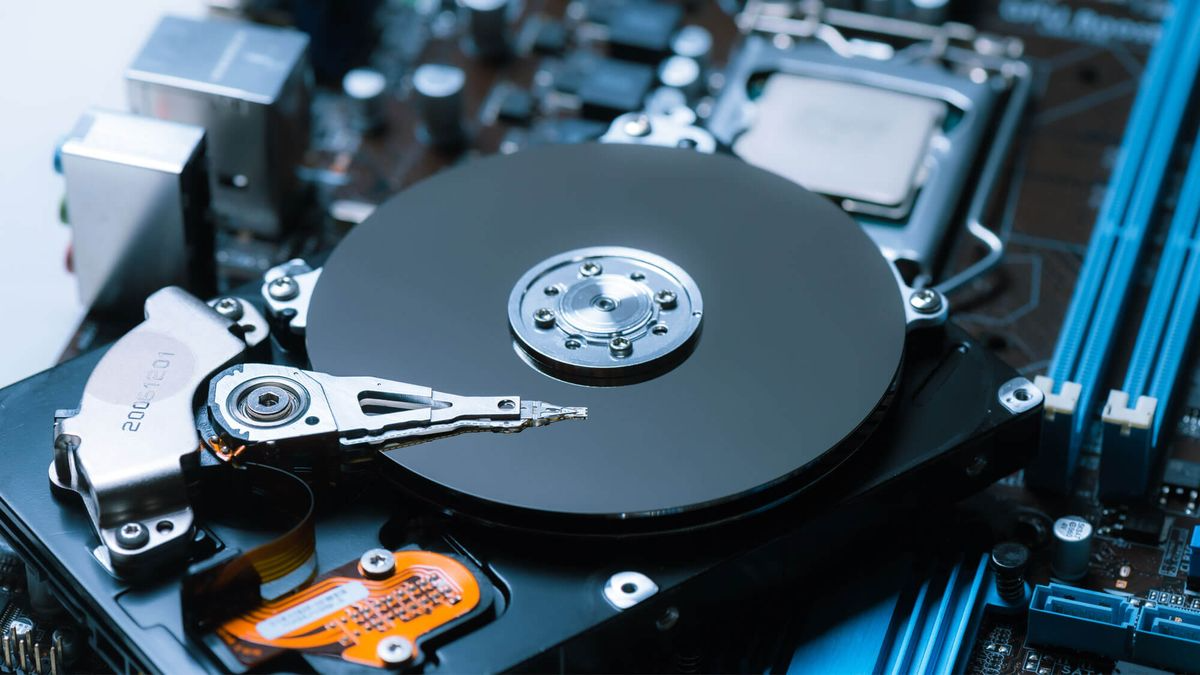
1. Understand What Server Storage Does
Server storage holds the operating system, applications, databases, virtual machines, files, backups, and other information your server needs to access. The right storage configuration depends on what the server does and how many users or applications depend on it.
A file server that stores large archives may prioritize capacity and cost per terabyte. A database server may need low latency and strong random-input/output performance. A virtualization host may benefit from a combination of fast SSDs and higher-capacity drives for less frequently accessed data.
Before comparing individual products, identify the workload, usable capacity, performance requirements, and compatibility limits of your server.
2. Compare the Main Types of Server Drives
Hard Disk Drives (HDDs)
HDDs use rotating magnetic platters to store data. They generally offer a lower purchase cost per terabyte than SSDs and are useful when a server needs substantial storage capacity.
- Best suited for: file servers, bulk storage, archives, media libraries, and backup repositories.
- Advantages: large capacities and often lower cost per terabyte.
- Limitations: mechanical components, higher access latency, and slower random I/O than SSDs.
HDD performance varies by model, rotational speed, workload, cache, interface, and firmware. A drive's advertised transfer rate alone does not tell you how well it will perform under a busy server workload.
SATA SSDs
SATA SSDs use flash memory rather than rotating platters. They typically provide much lower access latency and better random-read performance than HDDs, making them useful for operating systems, application data, and general server workloads.
- Best suited for: operating-system drives, application servers, and general-purpose workloads.
- Advantages: responsive access, no moving parts, and broad SATA support.
- Limitations: SATA interface bandwidth is lower than that of many NVMe drives.
Do not assume that every consumer SATA SSD is appropriate for continuous enterprise workloads. Compare endurance ratings, workload specifications, power-loss protection where required, warranty, and the manufacturer's intended use.
SAS HDDs and SAS SSDs
Serial Attached SCSI (SAS) is a storage interface widely used in enterprise servers and storage systems. SAS drives are designed for server environments, but the specifications differ between models.
- Best suited for: supported enterprise storage arrays, server drive bays, and workloads requiring SAS infrastructure.
- Advantages: enterprise-oriented options, dual-port capability on supported drives, and integration with SAS controllers.
- Limitations: require compatible SAS controllers and backplanes; cost and capabilities vary by model.
A SAS drive is not automatically faster or better for every application. Compare its actual specifications with the SATA or NVMe alternatives and verify that your server supports the exact drive.
NVMe SSDs
Non-Volatile Memory Express (NVMe) is a storage protocol designed for flash storage connected through PCI Express (PCIe). NVMe SSDs can deliver high throughput, low latency, and substantial parallel I/O performance when supported by the platform.
- Best suited for: demanding databases, virtualization, high-I/O applications, and fast data storage.
- Advantages: high potential performance and efficient parallel access.
- Limitations: platform support, drive form factor, cooling, firmware, and PCIe generation can affect compatibility and performance.
NVMe does not describe one physical drive size. NVMe SSDs are available in several form factors and connection arrangements. Confirm the server's supported NVMe bays, PCIe slots, cabling, and boot support before buying.
3. Understand SATA, SAS, and NVMe Interfaces
Drive type and drive interface are related, but they are not the same thing. HDDs and SSDs can use different interfaces, and two drives with similar capacities may not be interchangeable.
- SATA: common for SATA HDDs and SSDs. Confirm the controller, backplane, and supported drive type.
- SAS: common in enterprise servers. Requires a compatible SAS controller or storage system.
- NVMe over PCIe: uses PCI Express and the NVMe protocol. The server must support the relevant NVMe connection and form factor.
SAS controllers commonly support SATA drives when the controller and backplane are designed for them, but SATA controllers generally cannot operate SAS drives. NVMe drives also require the appropriate NVMe-capable connection. Never assume compatibility based only on the connector's appearance.
4. Check Drive Sizes and Form Factors
The physical form factor determines how a drive fits into the server and how it connects to the storage system. Check the server's technical documentation before choosing a replacement or upgrade.
2.5-inch drives
Commonly used for enterprise SAS and SATA drives, as well as some NVMe storage configurations. A 2.5-inch drive may still require a specific carrier, backplane, connector, or interface to work in a particular server.
3.5-inch drives
Often used for higher-capacity HDD storage. Make sure the server has compatible 3.5-inch bays or the manufacturer's supported conversion hardware.
M.2, U.2, U.3, and PCIe cards
These terms describe different physical formats or connection arrangements used by various storage products. An M.2 drive might use SATA or NVMe, depending on the model. U.2 and U.3 drives are associated with supported enterprise drive bays and backplanes. PCIe add-in cards require a compatible slot, sufficient clearance, appropriate cooling, and platform support.
Physical dimensions alone do not establish compatibility. Verify the protocol, keying or connector, electrical interface, firmware support, and server configuration.
5. Choose the Right Storage Capacity
Start by estimating the amount of usable space your applications need today and how quickly that data is expected to grow. Include operating-system files, application files, logs, temporary data, snapshots, and room for future expansion.
Drive capacity is not always equal to usable storage capacity. RAID configuration, formatting, filesystem overhead, spare capacity, and system requirements can reduce the space available for files.
For example, four 4 TB drives contain 16 TB of raw capacity in total. A redundant RAID configuration will provide less usable capacity, depending on the RAID level. Manufacturers commonly advertise capacity in decimal units, while operating systems may display capacity using binary units, so displayed values can differ.
Avoid filling a storage pool to its absolute limit. Keeping reasonable free space can help with workload spikes, maintenance, snapshots, and future expansion.
6. Evaluate Performance for Your Workload
Storage performance includes more than maximum sequential transfer speed. The relevant measurements depend on the way your applications read and write data.
Sequential throughput
Sequential throughput measures how quickly large, continuous blocks of data can be transferred. It can matter for large file transfers, media workloads, and some backup operations.
Random I/O and IOPS
Input/output operations per second (IOPS) indicate how many storage operations a drive or array can handle under specified test conditions. Random I/O performance can be particularly important for databases, virtualization, and workloads with many small requests.
Latency and queue depth
Latency is the time required to complete a storage operation. Queue depth refers to how many operations are waiting or being processed. A drive's performance can vary substantially depending on queue depth, read/write mix, workload size, and whether the workload is sustained.
Endurance and sustained writes
SSD performance and endurance can change as a drive fills up or its write cache is exhausted. For write-intensive workloads, review endurance ratings such as TBW (terabytes written) or DWPD (drive writes per day), where available, and compare them with the expected workload.
Published benchmark results are useful only when their test conditions resemble your own workload. Look for independent tests or detailed specifications rather than relying exclusively on headline speed figures.
7. Understand RAID Before Buying Multiple Drives
RAID combines multiple drives into an array for performance, capacity, redundancy, or a combination of these goals. The right RAID level depends on your controller, workload, number of drives, capacity needs, and acceptable risk.
RAID 0 — Striping
- Combines capacity across two or more drives.
- Can improve performance for supported workloads.
- Provides no drive-failure redundancy; failure of one drive can make the entire array unavailable.
RAID 0 is unsuitable when the array must survive a drive failure.
RAID 1 — Mirroring
- Typically uses two drives that mirror the same data.
- Usable capacity is approximately the capacity of one drive in a two-drive mirror.
- Can continue operating after one drive fails, subject to the array's configuration and health.
RAID 5 — Striping with single parity
- Requires at least three drives.
- Approximate usable capacity is the equivalent of all but one drive.
- Can tolerate one drive failure while the array remains recoverable, subject to controller and array health.
Rebuild times and the consequences of another failure should be considered, particularly with large-capacity HDDs and heavy workloads.
RAID 6 — Striping with dual parity
- Requires at least four drives.
- Approximate usable capacity is the equivalent of all but two drives.
- Can tolerate two drive failures within the array, subject to its configuration and health.
RAID 10 — Mirrored pairs with striping
- Typically requires at least four drives.
- Approximate usable capacity is half the raw capacity when all drives are the same size.
- Can offer strong performance and redundancy, depending on which drives fail.
RAID can help an array remain operational after certain drive failures, but it does not protect against accidental deletion, malware, corruption, theft, fire, or every controller failure. Maintain separate backups and test your recovery process.
These are general RAID characteristics. Actual usable capacity, supported drive counts, rebuild behavior, and failure handling depend on the RAID implementation and configuration. Confirm the controller's documentation before purchasing drives.
8. Check the Storage Controller and Backplane
A drive can fit physically and still fail to work because the server's storage controller, backplane, firmware, or configuration does not support it.
Identify whether your server uses a hardware RAID controller, an HBA (host bus adapter), onboard SATA, or a supported NVMe arrangement. These components determine which drives can connect and what storage features are available.
- Confirm the controller model and supported interfaces.
- Check the backplane type and supported drive protocols.
- Verify whether the system supports the intended RAID level or HBA mode.
- Check firmware requirements and drive compatibility lists where available.
- Confirm whether additional cables, trays, adapters, or upgrade kits are needed.
- For NVMe drives, confirm supported PCIe lanes, slots, bays, and cooling requirements.
Some server configurations use different backplanes or controllers depending on the original order. The same server family may therefore support different storage options in different configurations.
9. Do Not Forget Drive Caddies and Trays
Enterprise servers often use removable drive carriers or caddies to secure drives in the chassis. A bare drive may not include the correct carrier, screws, or mounting hardware.
Before buying, check whether the listing includes the tray and whether that tray matches your server model, drive size, and bay type. A carrier for a 2.5-inch drive may not fit a 3.5-inch bay, and visually similar carriers may differ in their mounting points or compatibility.
Also distinguish a complete hot-swap drive assembly from a bare drive. If you need hot-swap functionality, verify that the server's backplane, drive carrier, controller, and configuration support it.
10. Check Sector Format and Firmware Support
Enterprise drives can use different logical and physical sector formats. Common designations include 512n, 512e, and 4Kn. These formats can affect compatibility with older controllers, operating systems, applications, and boot configurations.
- 512n: presents native 512-byte logical and physical sectors.
- 512e: presents 512-byte logical sectors while using 4 KB physical sectors.
- 4Kn: presents 4 KB logical and physical sectors.
Do not assume every controller or operating system supports every format in every configuration. Verify the drive's exact specifications, supported firmware, and intended operating environment.
If the drive will hold the operating system, check boot support as well as data-drive support. A system may recognize a drive for data storage without supporting it as a boot device in the intended configuration.
11. Buying Used or Refurbished Server Drives
Used and refurbished drives can be an option when comparing enterprise storage on a budget, but their condition and remaining service life can vary. A product title or appearance alone cannot establish a drive's health.
Review the listing carefully and check which information the seller actually provides. Useful details include the exact model number, interface, capacity, condition, included accessories, testing status, warranty, and return policy.
For used HDDs, look for:
- Available SMART health information and reported media errors.
- Power-on hours and start/stop or load-cycle information, where available.
- Evidence of testing and whether the drive is sold as tested, used, or untested.
- Clear disclosure of any known defects or unusual behavior.
For used SSDs, look for:
- Available SMART health and wear information.
- Percentage of life used or remaining, if reported by that model.
- Total bytes written and other endurance statistics, where available.
- Evidence of testing and a clear return policy.
SMART data is useful, but it cannot guarantee that a drive will not fail. Reported wear indicators and health fields also differ by manufacturer and model. A drive that appears healthy can still fail unexpectedly.
For business-critical systems, consider the cost of downtime, replacement labor, warranty coverage, and recovery requirements before choosing used hardware. Keep independent backups regardless of the drive's condition.
12. Match Storage to Your Server Workload
Operating system and boot drives
A supported SSD can make operating-system and application startup more responsive. Confirm the server's boot mode, interface support, firmware, and required redundancy.
Virtualization hosts
Virtual machines can create many simultaneous read and write operations. Prioritize suitable random I/O performance, low latency, endurance, and enough capacity for virtual disks, snapshots, and growth.
Database servers
Database workloads vary, so compare the application's read/write pattern, latency requirements, write endurance, and data-protection needs. High-performance NVMe storage can be useful when the server and application can take advantage of it.
File servers and media storage
These workloads may prioritize capacity, sequential throughput, and network bandwidth. Higher-capacity HDDs can be suitable for bulk storage, while SSDs may improve responsiveness for frequently accessed files.
Backup and archive systems
Capacity and cost per terabyte may be major considerations. Also account for restore speed, data integrity checks, redundancy, retention requirements, and the need for a separate copy that is protected from the primary system.
13. Common Server Storage Buying Mistakes
- Buying by capacity alone: a large drive is not useful if its interface or form factor is incompatible.
- Assuming all 2.5-inch drives are interchangeable: SATA, SAS, and NVMe are different interfaces and protocols.
- Ignoring the controller: the server may require a specific controller, firmware, or supported configuration.
- Forgetting the caddy: a bare drive may need a compatible carrier or mounting kit.
- Confusing raw and usable capacity: RAID and formatting reduce the space available for data.
- Choosing RAID without considering recovery: a RAID level should match the workload and failure tolerance, with backups kept separately.
- Trusting an unclear condition description: request or review available testing information and return terms.
- Ignoring endurance: SSDs used for heavy writes should be evaluated against the workload.
- Overlooking sector format and boot support: older systems may have specific limitations.
- Assuming used drives have a guaranteed lifespan: historical health data cannot predict every future failure.
14. Server Storage Buying Checklist
Use this checklist before ordering a replacement drive or planning a storage upgrade.
Compatibility
- Identify the exact server model and configuration.
- Confirm the supported drive interface: SATA, SAS, or NVMe.
- Check the drive form factor and physical dimensions.
- Verify controller, backplane, firmware, and boot support.
- Check sector format requirements where applicable.
Capacity and performance
- Estimate current and future usable capacity.
- Match the drive to the workload's random and sequential I/O needs.
- Compare latency, endurance, and sustained performance where relevant.
- Plan the RAID configuration and account for its usable capacity.
Listing and purchase details
- Verify the exact manufacturer part number and model.
- Check whether the item is new, used, or refurbished.
- Confirm whether the caddy, tray, or required accessories are included.
- Review available health or testing information for used drives.
- Read the seller's warranty, return policy, shipping details, and item description.
- Compare the total cost, not just the displayed drive price.
15. Frequently Asked Questions
Are SSDs always better than HDDs for servers?
No. SSDs generally provide lower latency and stronger random I/O performance, but HDDs can be more cost-effective for large-capacity storage. The best option depends on workload, budget, capacity, endurance, and compatibility.
Can I use a SATA drive in a SAS server?
Many SAS controllers and compatible backplanes support SATA drives, but support depends on the actual hardware and configuration. Verify the server and controller documentation before purchasing.
Can I use a SAS drive with a SATA controller?
Generally, no. SATA controllers typically cannot operate SAS drives. Check the interface requirements before ordering a replacement.
Is NVMe faster than SATA SSD?
NVMe drives can offer substantially higher throughput and parallel I/O performance through PCIe. Actual performance depends on the drive, PCIe connection, server configuration, cooling, and workload.
How many drives do I need for RAID?
The minimum depends on the RAID level. RAID 0 and RAID 1 commonly start with two drives, RAID 5 with three, and RAID 6 and RAID 10 with four. Confirm the specific implementation and controller requirements before configuring an array.
Does RAID protect my data completely?
No. RAID can protect availability against certain drive failures, but it does not replace backups. Maintain separate backups and test that your data can be restored.
Is a refurbished enterprise drive safe to buy?
It may be suitable for some uses, but the risk varies with the drive's history, condition, testing, warranty, and return policy. For important data, maintain reliable backups and consider the consequences of unexpected failure.
Should I buy the same drive model when replacing a failed drive?
Matching the model or an approved replacement can simplify compatibility, but you must still verify capacity, interface, sector format, firmware, and RAID-controller requirements. Follow the storage system's replacement procedure, especially when an array is degraded.
Final Thoughts
The right server storage is the combination that meets your capacity and performance needs while remaining compatible with your hardware and support requirements. Start with your server's exact model and controller, choose the appropriate drive type and form factor, and plan redundancy and backups before purchasing.
When comparing listings, read the full specifications and condition details rather than relying on product titles alone. A careful compatibility check can help avoid buying a drive that does not fit, connect, or operate as expected.